





First Iteration
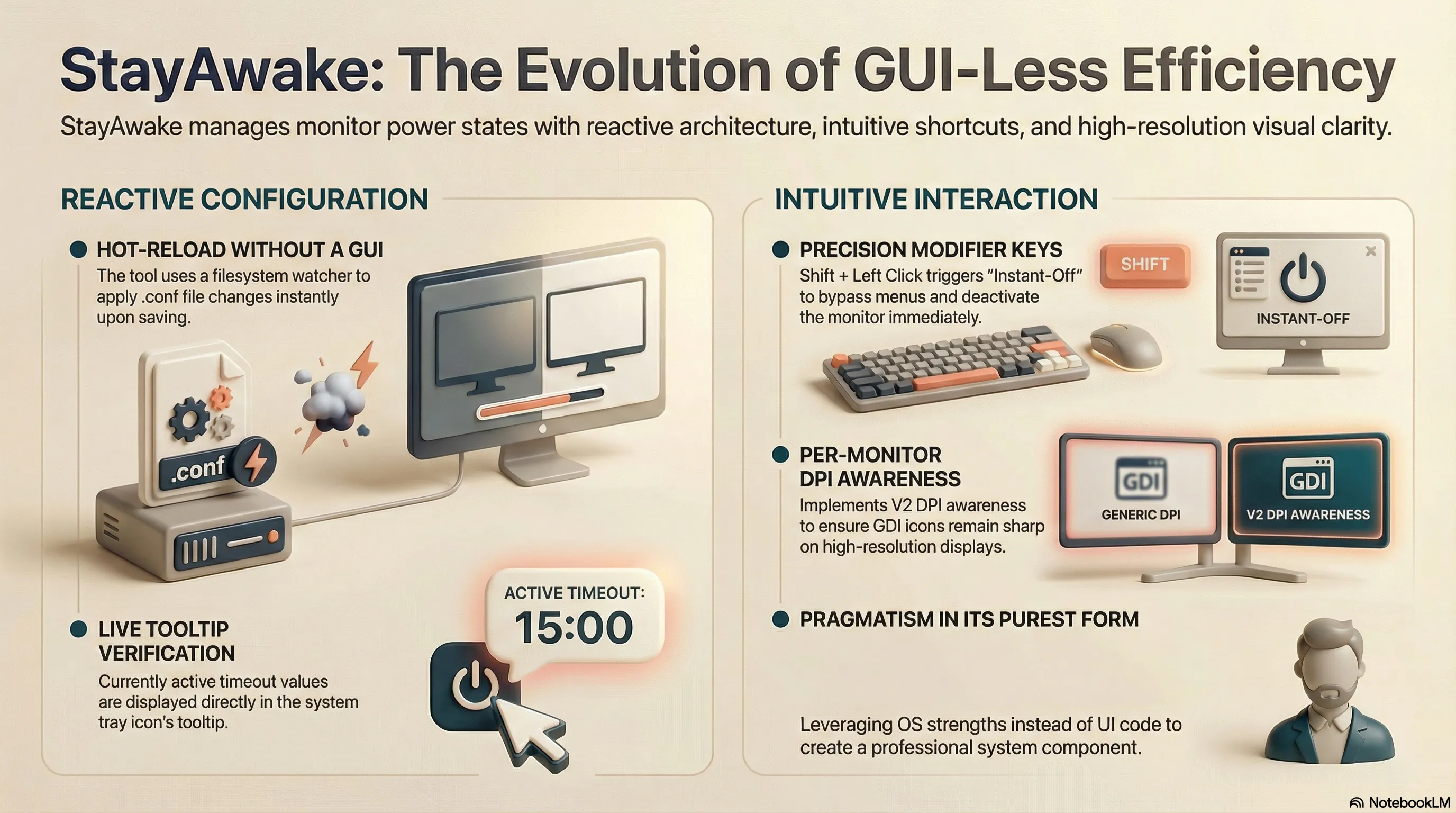
After the initial test runs, two missing pieces quickly emerged that needed to round out my use case: dynamic adjustment of the idle timeout and the ability to manually deactivate the monitor immediately.
Hot-Reload Without a GUI
I typically work with a 5-minute timeout—a value that has proven effective for years. Nevertheless, this value needed to
remain adjustable. Since I deliberately avoided a graphical user interface, I implemented an efficient “trick”: the tool
uses the FindFirstChangeNotificationW API to monitor the configuration directory. As soon as the .conf file is
saved, StayAwake immediately reads the new values for mode and timeout and applies them. The currently valid value is
displayed directly in the tray icon’s tooltip for verification.
Intuitive Quick Functions
For directly turning off the screen, I sought an interaction that bypasses context menus. The choice fell on the combination Shift + Left Click:
- Simple Click: Toggle between StayAwake and Auto-Off.
- Shift + Click: Instant-Off (monitor off immediately).
A double-click seemed too error-prone in the tray environment, whereas the Shift combination allows for very precise control for power users.
The Finishing Touch: DPI Awareness
Finally, clean DPI awareness (Per-Monitor DPI Aware V2) was implemented. This ensures that the dynamically generated GDI icon remains sharp on high-resolution monitors. With this, the first evolutionary stage after completion was finished.
The decision to use a filesystem watcher instead of a settings GUI is ‘pragmatism in its purest form.’ It saves hundreds of lines of UI code and instead leverages the operating system’s strengths. Combined with DPI awareness and modifier keys, StayAwake no longer feels like a small script, but rather like a professional system component that fully utilizes modern Windows standards (High-DPI, event-driven config).